

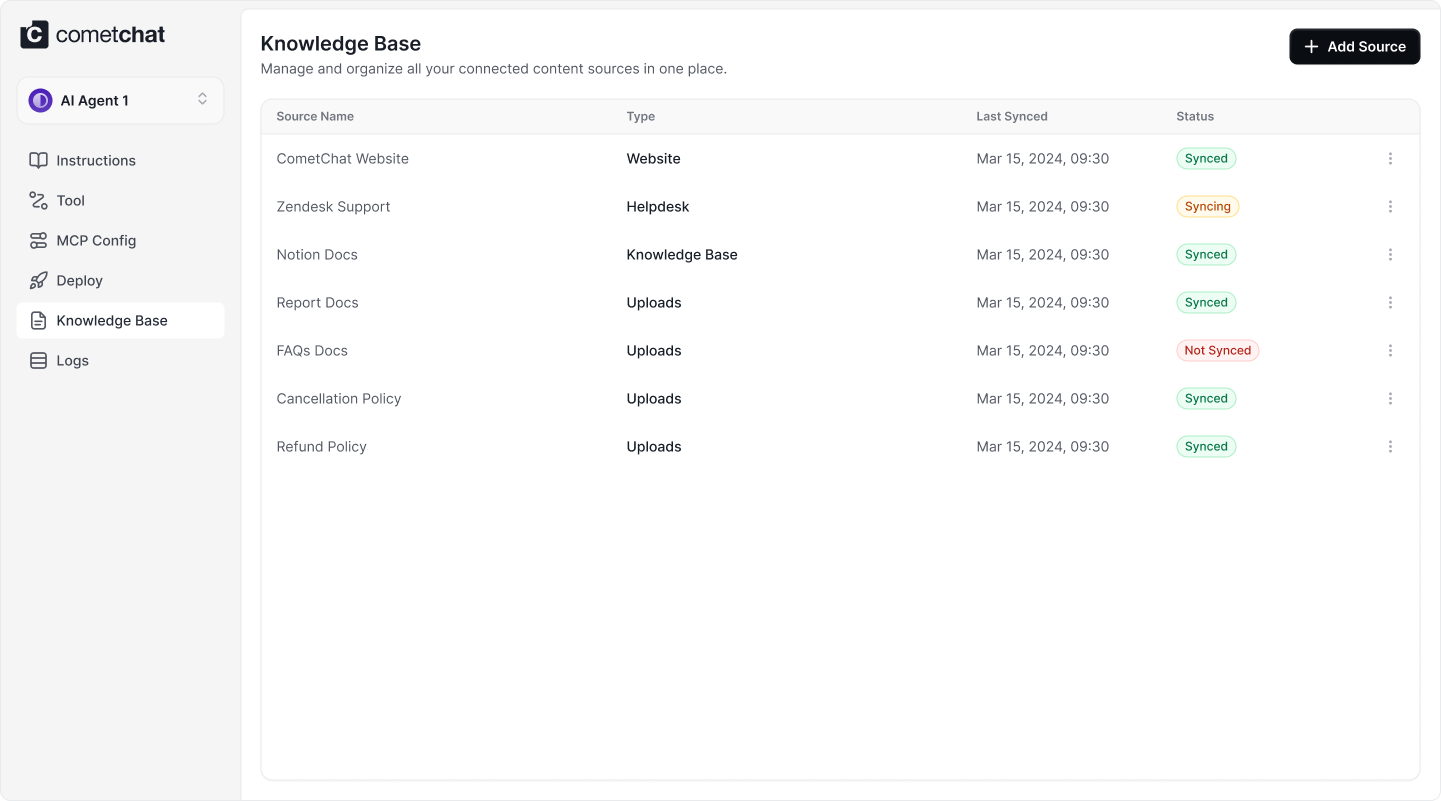
Key capabilities
- Source management – Upload, index, and curate PDFs, DOCX, TXT, and inline text entries in one place.
- Status tracking – See whether each source is Indexed, Indexing, or Failed before exposing it to users.
- Granular attachments – Attach or detach individual sources per agent without duplicating content.
- Flexible ingestion – Mix manual uploads with links or integrations (coming soon) to keep knowledge fresh.
Supported source types
- Files – Batch upload up to 10 PDF, DOCX, or TXT files. Every file is chunked and indexed so agents can cite specific passages.
- Text – Create lightweight notes or SOPs (up to 5,000 characters) directly in the dashboard—perfect for quick updates.
Add a source
1
Open Knowledge Base
Navigate to AI Agent → Agent Builder → Knowledge Base within the CometChat Dashboard, then click + Add Source.
2
Choose the ingestion method
Select from Files, Text, Links (coming soon), or Integrate (coming soon). The drawer updates its fields based on your selection.
3
Provide content and context
Upload files via drag-and-drop, paste text with the formatting toolbar, or enter metadata such as title and description so teammates can identify the source later.
4
Add and index
Click Add. The Knowledge Base queues the source, displays its status, and refreshes the list when indexing finishes.
Attach sources to agents
- Open the Knowledge Base list once your source shows Indexed.
- Locate the source row and toggle Attach to Agent for the agent you are configuring.
- Repeat for every agent that needs the same knowledge—no need to re-upload.
- To detach, toggle the switch off. The source stays in the library for future use.
Monitor source status
| Status | Meaning | Recommended action |
|---|---|---|
| Indexed | Processing succeeded and the content is ready for agents. | Attach to the relevant agents or leave it in the library for later. |
| Indexing | The source is still being chunked and embedded. | Wait for completion; large files may take longer. |
| Failed | The indexer could not process the file or payload. | Click the ↻ retry icon, verify the format, or upload a clean copy. |
Use Knowledge Base sources inside conversations
- Only attached sources become part of the agent’s retrieval context.
- Attached sources appear in testing and production conversations so you can verify citations.
- Detaching a source immediately removes it from the agent’s context without deleting the data.
- You can reuse the same source across multiple agents to keep shared knowledge consistent.
Best practices
- Group related documents before uploading so you can map them to the right agents.
- Review indexing results after every bulk upload to catch failures early.
- Archive outdated sources or detach them from agents to prevent stale information from leaking into responses.
- Document why each source exists using the title and description fields—future teammates will thank you.